
A Microsoft Word add-in for scholarly writing
The Clerk
The Clerk sits in a task pane beside your document. It reads the passage you select and says, in plain language, what gets in a reader’s way, then suggests the smallest edit that fixes it. Correct what is wrong, flag what is unclear, and preserve what is yours.
Contents
Get The Clerk Open The Clerk in the browserView documentation
The app opens in this browser for a look around. Reading and changing your text needs Word.
Start here
- Install The ClerkStep by step
- Join the pilotThe Clerk pilot
- Using The Clerk in WordEvery part of the pane, step by step
Who it is for
Scholars who write in Microsoft Word: thesis chapters, journal manuscripts, policy research and other citation-heavy academic writing.
What it does inside Word
- You select a passage and choose a check. The Clerk works on that selection; it never scans your document on its own. Section sweeps and whole-document scans run only when you start them.
- Each finding comes with a reason and a minimal edit that keeps your wording. Nothing in your document changes until you choose to apply a suggestion.
- A manuscript profile can hold your terminology, English variant and protected terms, so every check respects them.
The pane
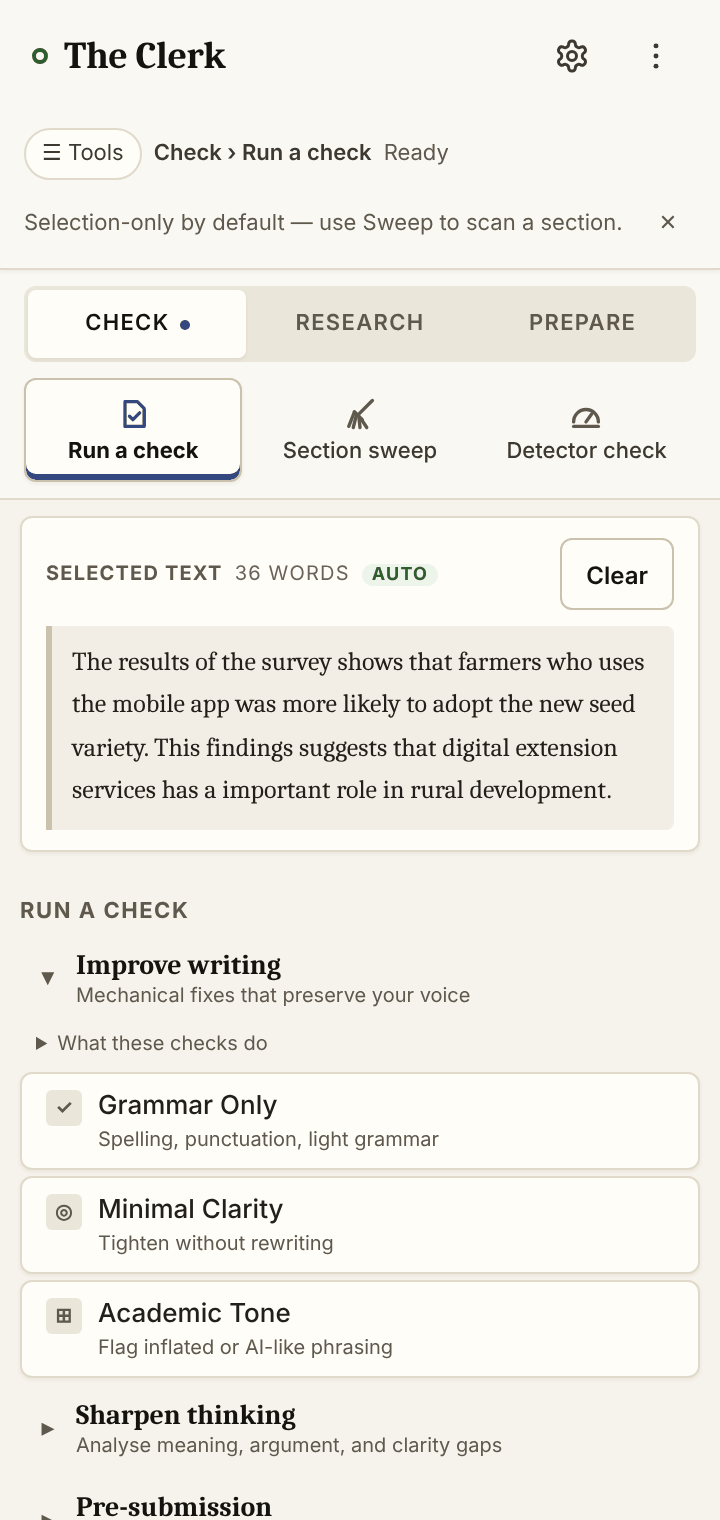
The Clerk works in a task pane beside your document. These are captures of the pane itself, shown outside Word: its own interface, with nothing drawn around it.
Add it to Word
Download the installer for your computer, run it, then open Word: The Clerk is on the Home tab; on a Mac, under Add-ins. The setup for Windows, the zips for Windows and Mac, and every step are on Install The Clerk.
Install with the pilot installer
Which version you get. It depends on whose AI keys run your checks.
With an access code (pilot members)
- An access code is required to use this site's own AI keys. The Clerk asks for the code from your pilot invitation on its entry screen, before it opens. A code lasts 30 days from the first time this site accepts it.
- This site chooses the model: ⚙ Automatic, “Automatic — each check uses its recommended model”. In the pane's words, “This site chooses the model while you use its access code.”
- While no key of your own for a model provider is saved, there is no model picker and nothing to preselect. Saving your own key for a model provider as well brings the model picker back, and a model from that provider runs on your own key.
- Daily limits protect the shared keys.
With your own API keys
- No access code is needed. Add a key under Settings → Your own API keys.
- You get the full model choice: the model picker at the top of the pane, where you preselect the model your checks use (the same choice is the Default model in Settings), and Compare across models in the pane's tools. AI models compares them side by side.
- Your keys stay in your browser and travel only with your own requests to this site.
With neither a code nor your own key, this site's keys will not run your checks, and the pane says so: “This site needs an access code to use its own AI keys. Enter your code on The Clerk's entry screen, or add your own key under Settings → Your own API keys.”
The installers, step by step, with how to check it worked, what to do if it did not, and removal: Install The Clerk.
How it works
A first run of The Clerk, from installing it to removing it. Names in bold are the ones the pane shows; words in quotation marks are the pane's own.
1. Install it
Use the pilot installer: the setup for Windows (or the Windows zip), or the zip for Mac.
2. Open The Clerk in Word
On the Home tab, click The Clerk (hosted), its name in Word's list of add-ins too. On a Mac, click Add-ins on the Home tab, then The Clerk (hosted). The Clerk opens in a task pane beside your document.
3. Enter your access code
Until the pane has an access code or a key of your own, it opens on its entry screen, “Enter your access code”. Enter the code from your pilot invitation in the Access code field and click Open The Clerk. This site checks the code, and the pane saves it only once it is accepted; in the screen's words, it “stays in this browser and is sent only to this site.” A code lasts 30 days from the first time this site accepts it, and Settings, under Access code, shows when it expires.
To use your own provider keys instead, click Use my own API key instead: it opens Your own API keys, which the pane describes as “Use your own provider keys instead of this server's.” No code is needed for your own keys. A check run with neither answers: “This site needs an access code to use its own AI keys. Enter your code on The Clerk's entry screen, or add your own key under Settings → Your own API keys.”
4. Check a passage
Select a passage in Word. It appears in the pane's Selected text box: “Highlight any sentence or paragraph in Word — it will appear here automatically.” If you turn off Auto-pick up Word selection (no Refresh click needed) in Settings, click ↺ Refresh after selecting.
Under Run a check, choose a check from its group: Improve writing (Grammar Only, Minimal Clarity, Academic Tone), Sharpen thinking (Sense Check, Argument Fit, Explain Problem, Claim Strength) or Pre-submission (Originality & Voice, AI Tell-Signs, Reviewer Lens). The check modes describes each one.
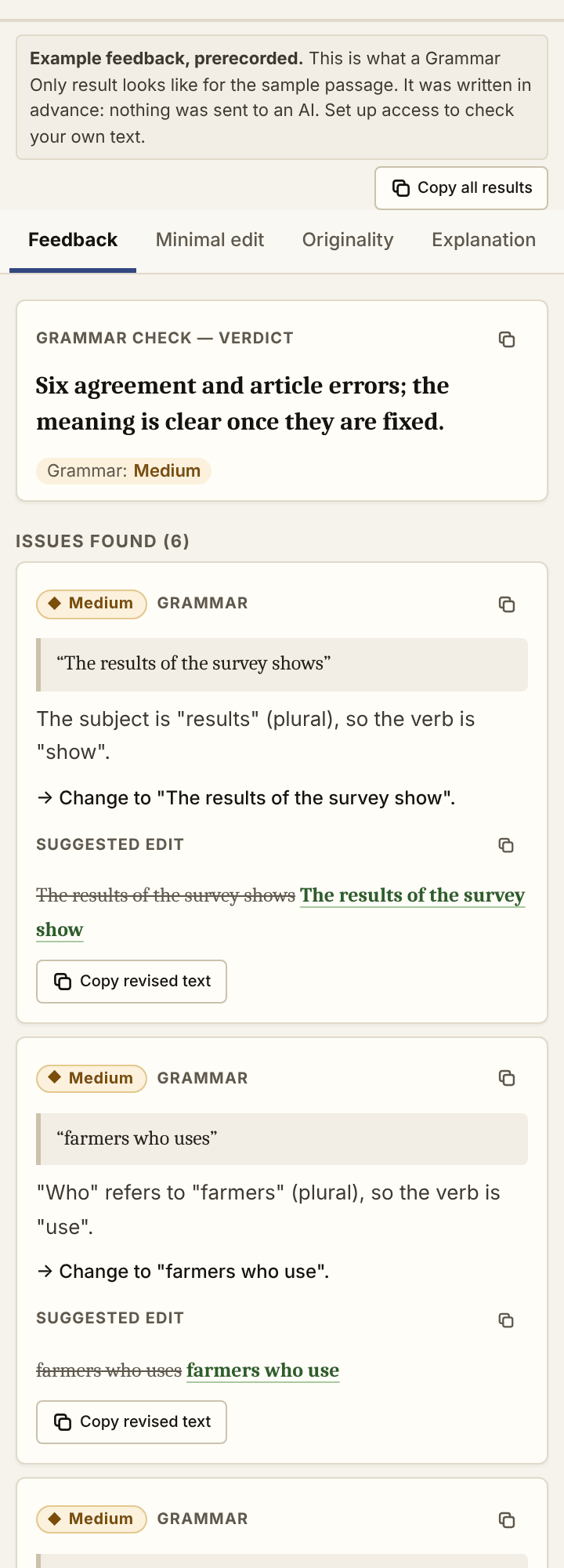
The result opens on Feedback, with the issues found. Where an issue has a Suggested edit, Apply this fix asks once, then replaces that wording in Word. A suggestion you don't want needs no action: leave it, and your text stays as it is. The Minimal edit tab marks each corrected passage “Proposed, not applied” and offers Review and apply…, which shows the original and the edit together: edit it, accept and apply it, or reject it. Nothing in your document changes until you accept an edit, and an applied edit can be reverted from its card (Revert…) or with Ctrl+Z in Word. Where the result offers it, Insert as comment adds the feedback as a Word comment instead.
The pane checks what you select, and nothing else: “Selection-only by default — use Sweep to scan a section.”
5. Sweep a section
Open Section sweep in the tool list: “check every paragraph from this heading to the next”. Choose Selection, Section or Document, pick a check and click Run sweep. Each paragraph gets its own row, with ↗ Jump to paragraph, and, where they apply, the original paragraph beside the proposed one with Accept…, Edit and Reject, and Insert as comment. Tick rows (or Select all proposed) and apply them together after one confirmation; an applied row says so and offers Revert….
While it runs, Cancel stops it. The rows already checked stay; paragraphs it had not reached are marked “Skipped (cancelled)”.
6. Detector check
Detector check, at the foot of the Pre-submission group: “Shows how this text reads to an AI-text detector (Pangram). A high score is not proof of AI writing. Use it to spot passages worth revising in your own voice.” Choose Selection or Whole document. It returns an Overall: line, then the passages Pangram reads as AI-generated or AI-assisted, each with its score; clicking a passage selects it in Word. It offers no rewrite. The selected text is sent to Pangram for analysis.
Pangram AI Review, beside it, is the “External AI-detection scan + rewrite”; in its own words, “Detection results are indicators, not proof of authorship.” A detector score is a signal for your own review, never proof of how a text was written.
7. The other tools
Each in the pane's own words.
- Rewrite whole selection (Pre-submission): “Pangram checks it first, then Emulate or a model”.
- Journal Audit (Pre-submission): “Whole-document readiness check”.
- Find reference (Research): “paste a reference, resolve it on OpenAlex, download as .ris (EndNote/Zotero/Mendeley)”.
- Journal audit (Research): “check formatting & structure against a journal’s author instructions”.
- Manuscript profiles (Research): “saved per-project context (terminology, English variant, forbidden phrases)”.
- Writing helper (Prepare): “continue an idea or smooth a paragraph using your manuscript profile as context”.
- Reviewer bank (Prepare): “Reviewer comment bank”, used by Reviewer Lens.
- Cover letter (Prepare): “draft a journal-submission letter using your manuscript + journal profiles”.
- Paper strategy (whole paper) (More): “A top model reads the whole paper and plans the fixes; a cheaper one drafts them”.
- Format for Journal (More): “Check and format the manuscript against the journal's current official guidelines (manual formatting too)”.
- Acronyms & terms tracker (More): “Reads your entire document and flags acronyms used before they're defined, defined twice with different expansions, and defined but never used.”
- History (More): “Run any check from the home screen and it will appear here — reopen a past result with one click”.
8. The model
On an access code, this site chooses the model and there is nothing to choose: the pane shows no model picker, and The Clerk runs on ⚙ Automatic: “Automatic — each check uses its recommended model”. Under AI model in Settings, the pane names each check's model and says “This site chooses the model while you use its access code.”
With your own key under Your own API keys, the model picker at the top of the pane shows the model in use; click it to change. It starts on ⚙ Automatic. To compare the models side by side, see AI models.
9. Without Word
Open The Clerk in this browser for a look around. There the selection box is Text to check: “Paste or type a passage, then choose a check below.” The checks run on what you type: “Check pasted text here. Install the Word add-in to read selections and apply changes directly.” A code or key saved in Word's pane stays there, so enter it under Settings in the browser too.
10. Remove it
Windows setup: uninstall The Clerk (hosted) in Windows Settings, then Apps, or use Uninstall The Clerk in the Start menu. Zip (Mac, or the Windows zip): run Remove The Clerk from the folder you installed from. The steps are in Install with the pilot installer.
Every part of the pane, step by step: Using The Clerk in Microsoft Word.
A check, step by step
The Clerk's prerecorded example: a sample passage with its findings marked, each with its suggested edit and the reason for it. It was written in advance; nothing is sent to an AI. After it, the step where you apply a fix or leave it, drawn rather than live.
Passage checked · Grammar Only
The results of the survey shows1 that farmers who uses2 the mobile app was more likely3 to adopt the new seed variety. This findings suggests4 that digital extension services has5 a important role6 in rural development.
Six agreement and article errors; the meaning is clear once they are fixed.
- 1 · The results of the survey showThe subject is "results" (plural), so the verb is "show".
- 2 · farmers who use"Who" refers to "farmers" (plural), so the verb is "use".
- 3 · were more likelyThe subject is "farmers" (plural), so the verb is "were".
- 4 · These findings suggest"Findings" is plural: "these findings suggest".
- 5 · digital extension services have"Services" is plural, so the verb is "have".
- 6 · an important role"Important" begins with a vowel sound, so the article is "an".
Drawn, not live
- Under a finding, in WordThe subject is "results" (plural), so the verb is "show".
The results of the survey showsThe results of the survey show - It asks firstReplace “The results of the survey shows” with “The results of the survey show” in your selection? Ctrl+Z undoes it.
- Your choiceApply replaces only that span in your selection, and Ctrl+Z undoes it. Cancel, or leaving the finding as it is, changes nothing.
How the online option works
- This site's keys, with an access code. Pilot members enter their code on The Clerk's entry screen, which asks for it before the app opens. A code lasts 30 days from the first time this site accepts it. Daily limits protect the shared keys.
- Your own keys. Under Settings → Your own API keys, add a key for Anthropic, OpenAI, Gemini, DeepSeek, Moonshot, OpenRouter or Pangram. Keys stay in your browser and travel only with your own requests to this site. No code is needed.
The AI models it uses
The Clerk's checks are run by AI models from external providers. Those models belong to the companies that make them: EmpiricQuest does not make, own or train them, and naming one here is not an endorsement or a partnership. The Clerk sends the text you check through this site to the model chosen for it, on this site's keys with an access code or on your own key.
AI models used by The Clerk → lists each model and its provider, and on your own keys lets you choose the one the app uses.
The check modes
Improve writing
Mechanical fixes that preserve your voice.
- Grammar Only: spelling, punctuation, light grammar.
- Minimal Clarity: tighten without rewriting.
- Academic Tone: flag inflated or AI-like phrasing.
Sharpen thinking
Analyse meaning, argument and clarity gaps.
- Sense Check: does this passage make sense?
- Argument Fit: does it support the section claim?
- Explain Problem: why is this hard to read? A plain explanation, without rewriting.
- Claim Strength: calibrate overclaims and suggest softeners.
Pre-submission
Checks for the last read before you send a manuscript.
- Originality & Voice: citation risk and voice drift.
- AI Tell-Signs: a style-risk review of AI-like writing patterns, not proof of how a text was written.
- Reviewer Lens: compare a passage against your reviewer comment.
Reviewer Lens
Build a reviewer comment bank: paste each reviewer, editor or supervisor comment and label it by category (Literature, Theory, Methods, Findings, Discussion, Contribution, Recommendations, Structure or Writing Clarity). Mark one comment active, select a passage in Word and run Reviewer Lens.
The Clerk reports whether the passage strongly, partly, weakly or does not address that concern, and returns what the text currently does, what is still missing, the smallest useful revision, a Word-comment version and a short response-to-reviewer note. Comments are stored in your browser.
Detector check: a signal, not proof
Detector check shows how the selected text reads to an AI-text detector (Pangram): one overall line, then the passages it reads as AI-generated or AI-assisted, each with its score. Clicking a passage selects it in Word.
A detector score is a signal for your own review, never proof of how a text was written. A high score is not proof of AI writing. Detector check is show-only by design: it offers no rewrite. Use it to find passages worth revising in your own voice. The selected text is sent to Pangram for analysis.
Research tools in The Clerk
- Find reference: Paste a reference, resolve it on OpenAlex, and download it as .ris for EndNote, Zotero or Mendeley.
- Journal audit: Check a manuscript’s formatting and structure against a journal’s author instructions.
- Format for Journal: Check the open manuscript against a target journal’s current official author guidelines, apply safe formatting, and review any structural changes the journal requires. Guidelines can be read from the official pages, pasted in, or, where this site has it switched on, gathered by Deep Research, whose quotes are checked against the downloaded pages before they are used.
- Paper strategy (whole paper): A top model reads the whole paper and plans the fixes. Compare with published papers sets your study beside a journal’s recent articles from OpenAlex, and Find gaps in this journal looks for research gaps your study could take up.
- Manuscript profiles: Saved per-project context: study title, objective, theoretical framework, terminology, English variant, forbidden phrases and protected terms.
- Acronyms & terms tracker: Finds acronyms used before they are defined, defined twice, defined but never used, or never defined, and spellings that drift from your manuscript profile’s glossary.
Writing and submission tools in The Clerk
- Section sweep: Check every paragraph from this heading to the next.
- Writing helper: Continue an idea or smooth a paragraph, with your manuscript profile as context.
- Reviewer bank: Save reviewer comments and check a passage against one with Reviewer Lens.
- Cover letter: Draft a journal-submission letter from your manuscript and journal profiles.
Preparing a manuscript for JEMSPRO? The Manuscript Readiness Desk checks a Word document's structure, abstract, references and formatting in your browser, and points to the tool here that helps with each finding.
- Discover JEMSPRORead the current issue and search the published articles.Explore the articles
- Review the guidelinesThe journal's Author Guidelines govern what a manuscript needs.Author Guidelines
- Check your manuscriptA preliminary check of structure, abstract, references and formatting, in your browser.Manuscript Readiness Desk
- Use The ClerkWork through what the check found, inside Microsoft Word.Using The Clerk in Word
- Submit through the journalSubmission and editorial decisions happen on jemspro.org, in the journal's own system.Submit on jemspro.org
The Clerk is separate software. Using it, or this site's checks, gives a manuscript no advantage with JEMSPRO's editors: every submission is judged by the journal, on its merits.
Release notes
What changed for people using The Clerk, newest first, as Help → Release notes in the app shows it.
This version
- The Clerk has a new icon in Word: a cream C with a red pen nib on a navy disc. If Word still shows the old icon, run the setup (or the pilot installer) once more.
- In a browser, The Clerk says what it can do without Word, keeps your draft while you move around the site, and shows whether a check can run before you start.
- Site search finds tools and help topics and opens them directly.
- The Windows setup no longer adds a shortcut that opens Word, and removes one an earlier setup added: open Word as usual and click The Clerk (hosted) on the Home tab.
- Pilot places can be requested on the pilot page; with a code saved, the page and Settings show today's allowance.
- A dedicated installation page with Windows and Mac steps, checks and troubleshooting.
- The models page adds task shortcuts, each model's key status, a cost estimate per check and a comparison tray.
- The active manuscript is shown by the text box; switching manuscripts clears the previous result, and a manuscript's study context and chosen journal no longer carry into another.
- Backups show what a restore would replace before it happens, and a reminder appears after profiles change.
- This Help panel, with a diagnostic summary to copy when reporting a problem.
- The home page opens The Clerk, the installation page or a labelled example straight from its introduction.
- The research notes say which are methods, which are development observations, and that no validated findings are reported yet.
22 October 2026
- The Windows setup installs The Clerk with one file and adds a desktop shortcut with The Clerk's own icon.
- Pilot installers for Windows and Mac: download, run, and Word picks The Clerk up; no add-in file to upload.
- With an access code, each check uses its recommended model, chosen by the site.
- The Clerk page explains which version you get, how to remove it, and how it works from installing to removing.
- The models page: search, filter, sort, compare and choose the model The Clerk uses.
- The home page no longer flashes the add-in's interface while it loads.